Create and configure an Item evaluation exercise
Item evaluation exercises can be created, configured, and managed by authorised users via Evaluation & review > [ITEM EVALUATION] > Item evaluation exercises.
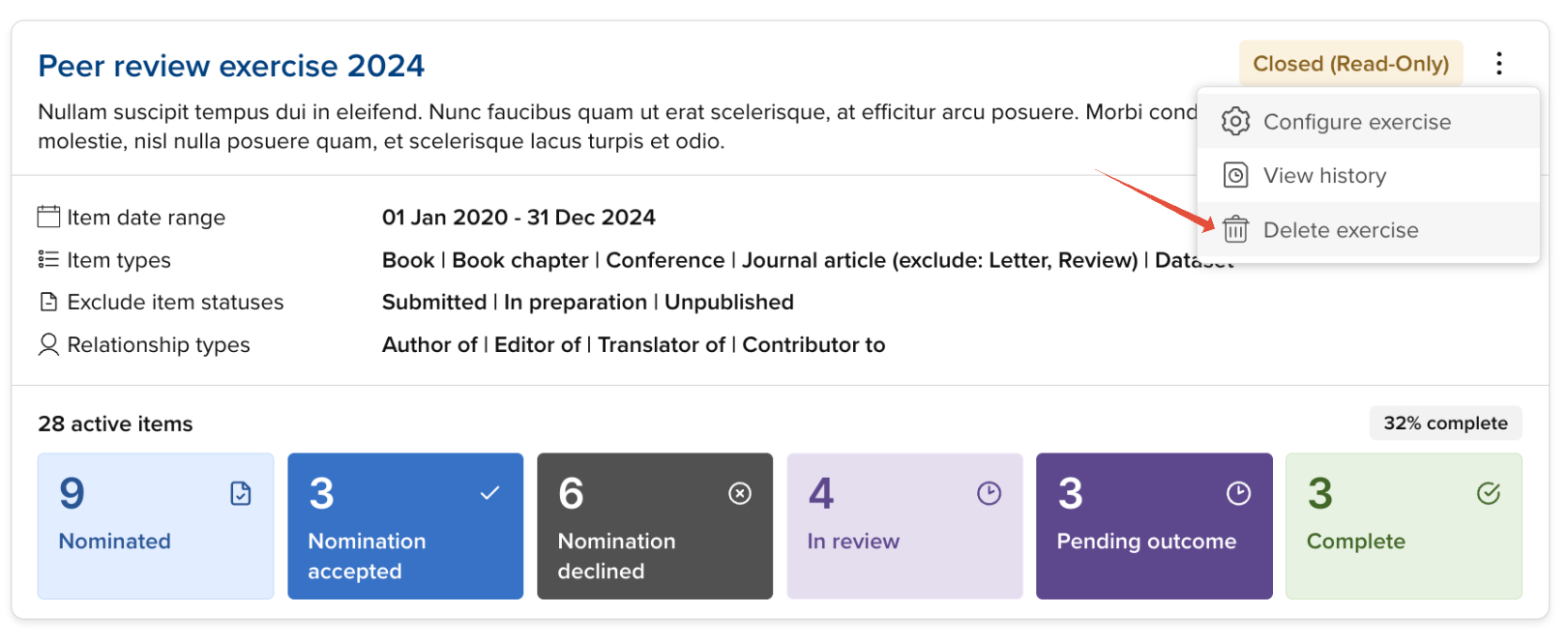
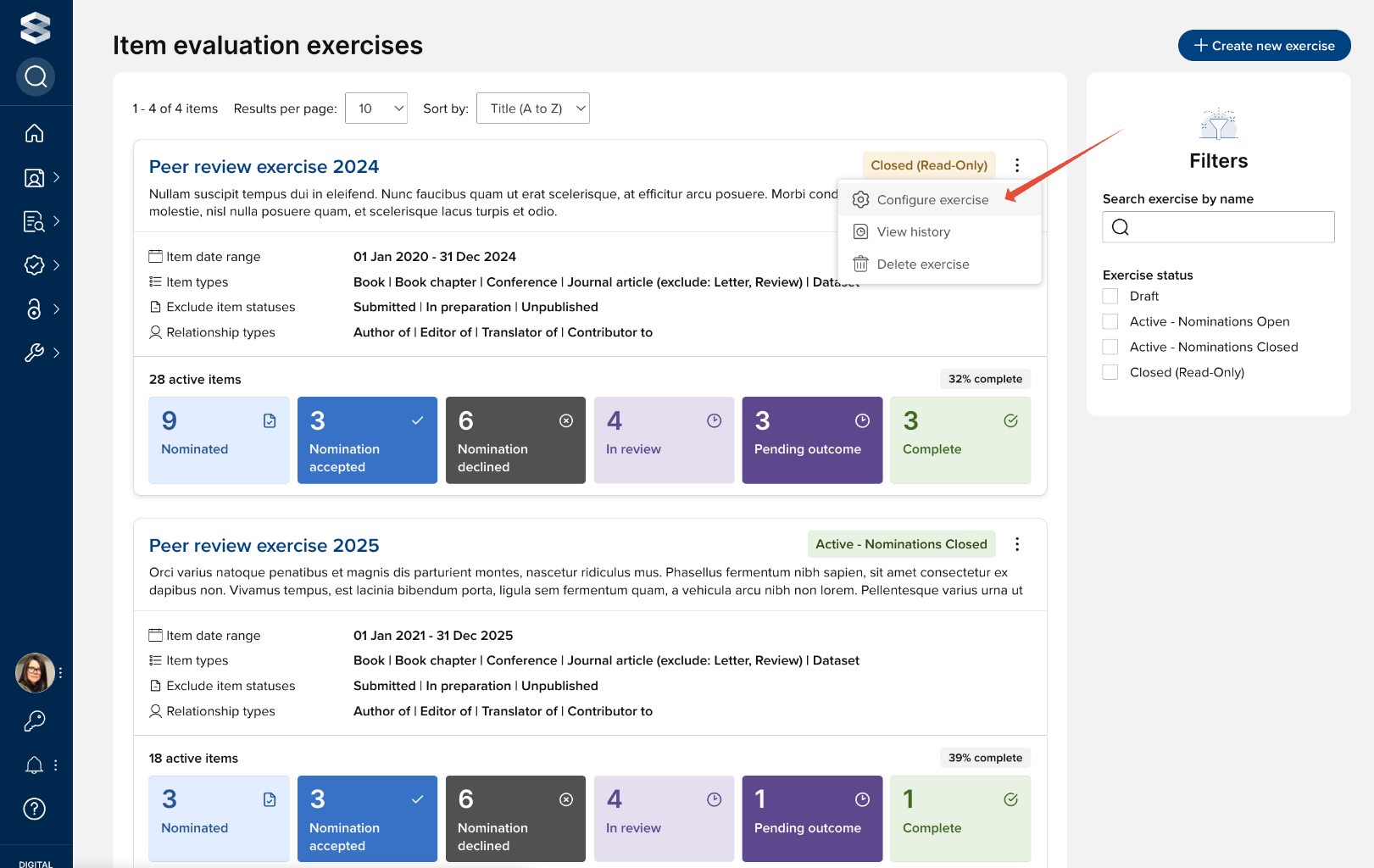
The exercises list page lists all Item evaluation exercises that have been configured in your instance of Elements. Exercises are tagged with their status, and provide key summary information:
Exercise display name
Description
Status
Summary scope information
Progress overview bar
And various actions:
Configure exercise
View history
Delete exercise
To modify an existing exercise's configuration, select 'Configure exercise'.
Create a new exercise
When setting up a new exercise, there are a few steps to run through:
Create the exercise
Configure the exercise settings (this article)
Set the scope of the exercise (which publications to include)
Set nomination guidance and configure the nomination form (optional)
Set reviewer guidance (optional) and configure the review form
Set manager guidance and configure the overall outcome form (optional)
Set up your Unit structure (see the 'Create and configure exercise units' support article)
Select your Unit managers
Who will be able to manage the exercise within each Unit
Select your reviewer pool members (this can be devolved to Unit managers)
Who will be available more prominently to be assigned reviews
Select your Unit members (this can be devolved to Unit managers)
Who will be prompted to nominate eligible publications to each Unit within this exercise
Set your unit-level configurations (this can be devolved to Unit managers)
Once you are ready to open the exercise up for nominations, change the status from 'Draft' to 'Active - Nominations open'
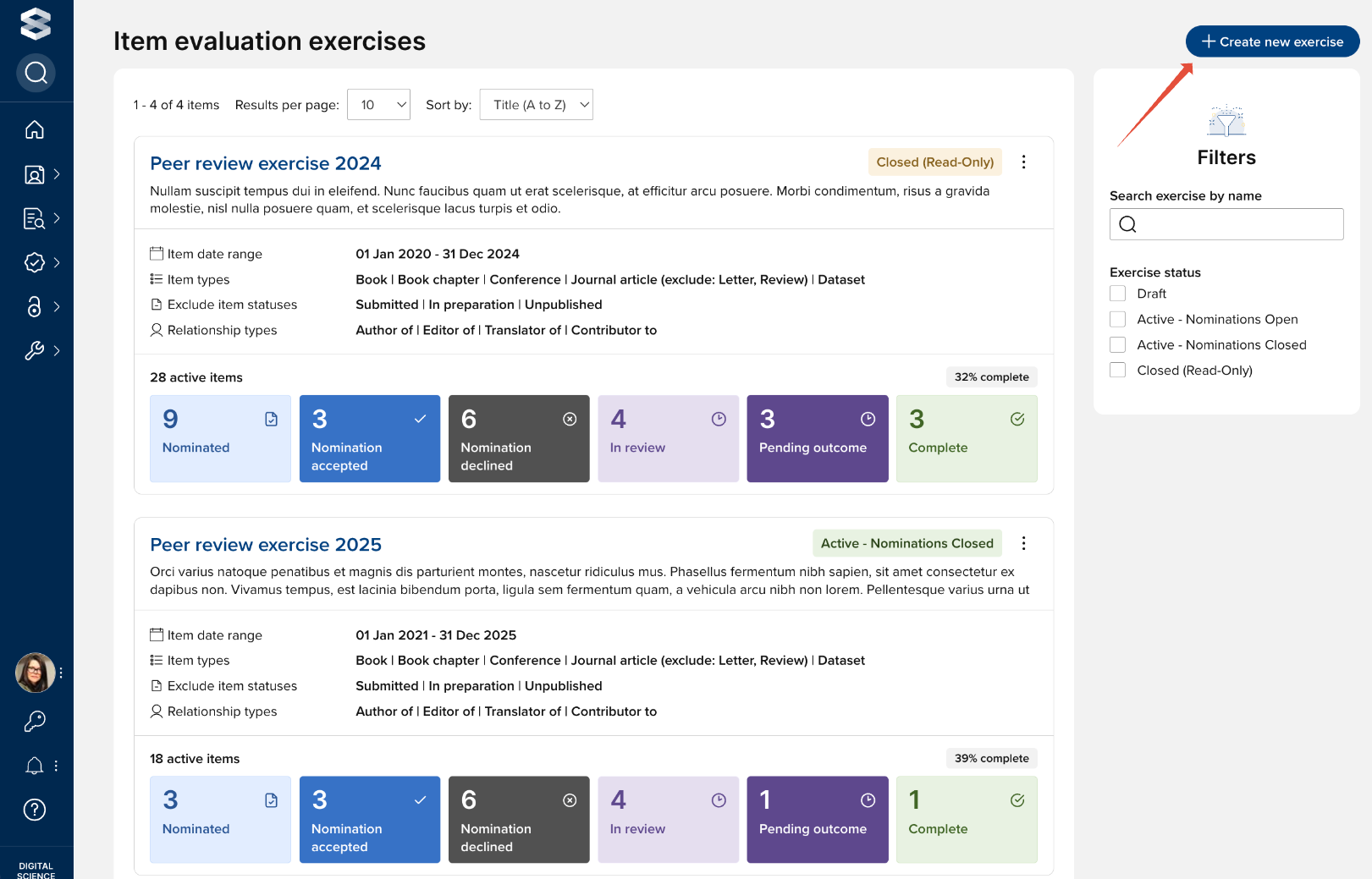
To create a new exercise, select the 'Add a new exercise' button in the top right-hand corner of the screen.
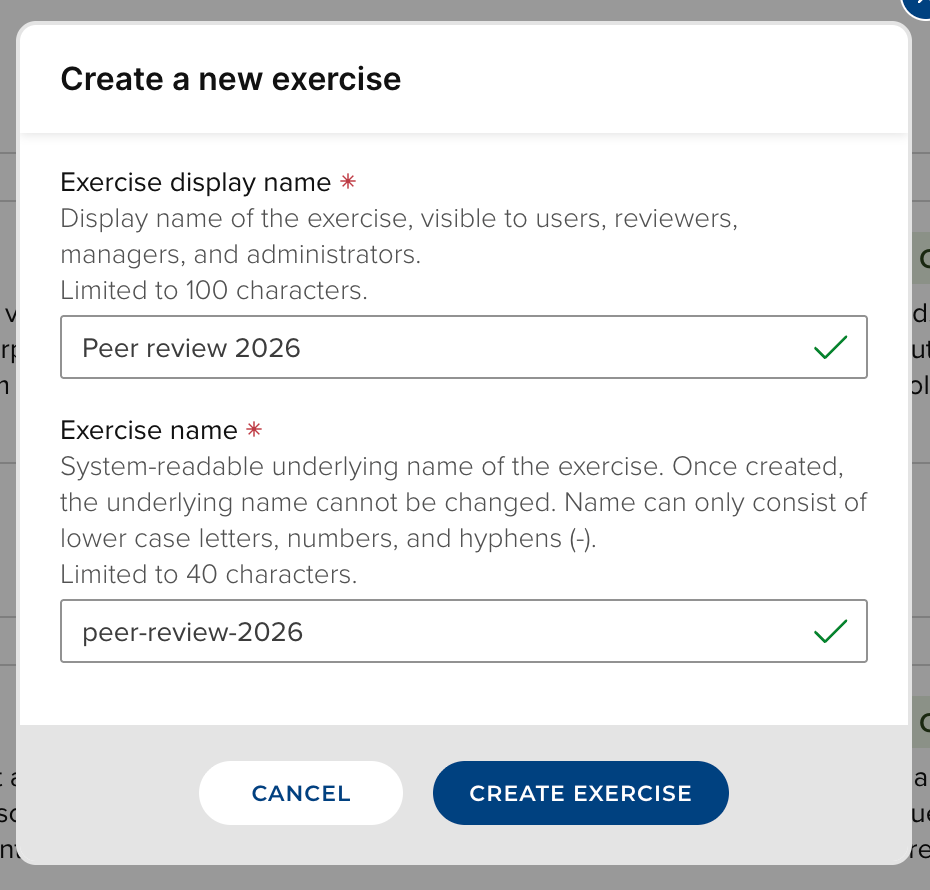
The first step is to give your exercise a display name and an exercise name, then select 'Add'.
Exercise display name
Display name of the exercise, visible to users, reviewers, managers, and administrators
Exercise name
System-readable underlying name of the exercise. Once created, the underlying name cannot be changed
This then creates your new Item evaluation exercise, and you can now configure the specific settings to apply to this exercise.
General
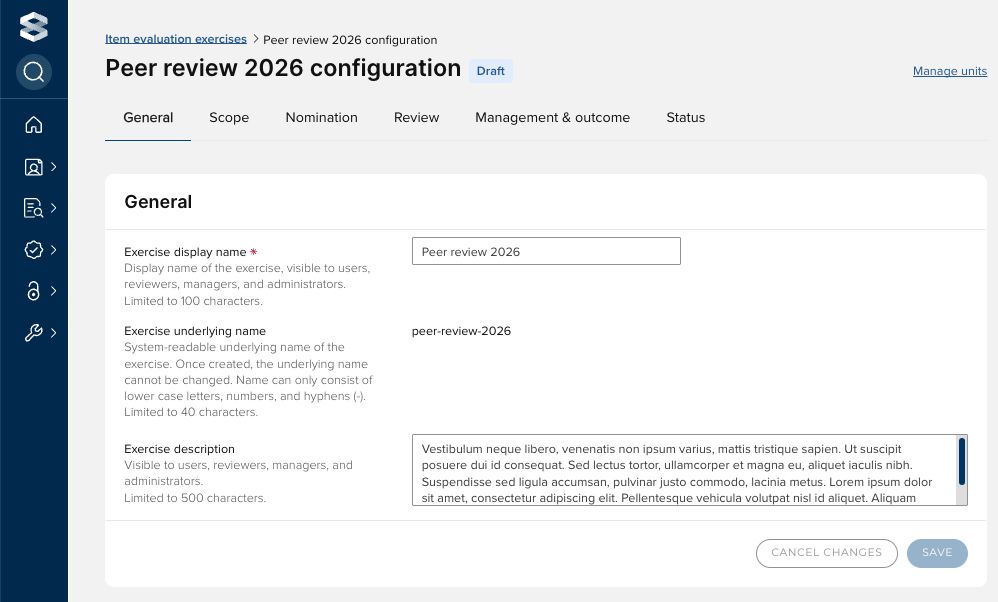
In the General tab you can modify the display name of the exercise and provide a description.
Scope
The Scope tab is where you define which publications should be included in this exercise. Scope criteria includes:
Publication date range
Publication type (including excluded sub-types)
Publication status
Linked user properties
Note that only claimed link types are included
These settings will set the population of this exercise for users included in the exercise.
Publication date range
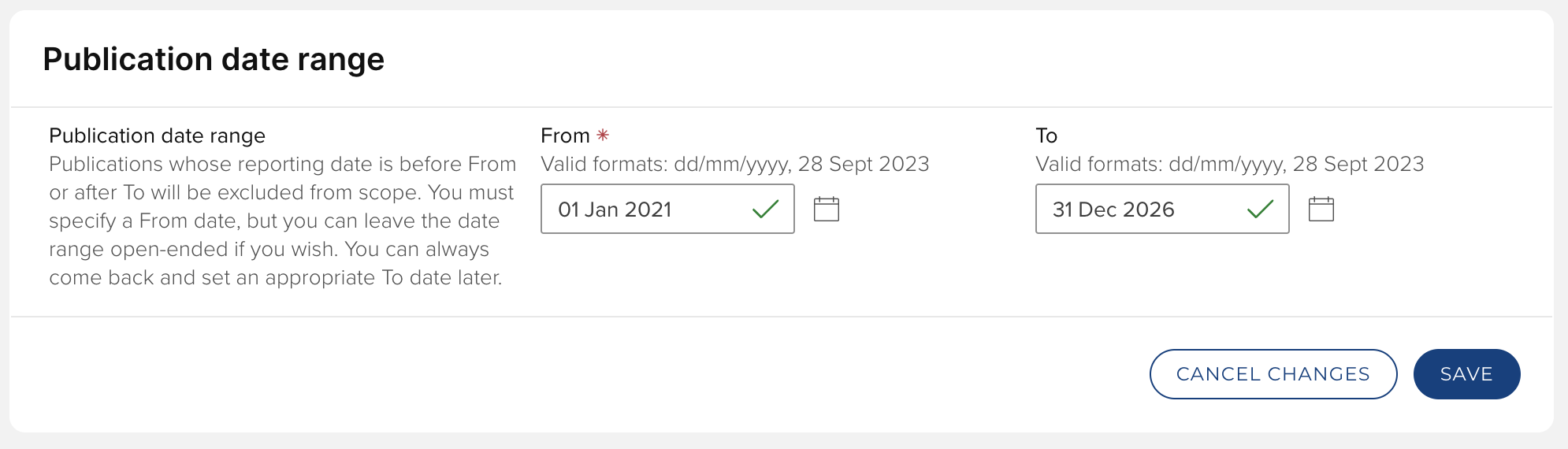
Set the start and end reporting dates to include publications in the scope of the exercise. Publications whose reporting date is before From or after To will be excluded from scope. You must specify a From date, but you can leave the date range open-ended if you wish. You can always come back and set an appropriate To date later.
If a publication has no reporting dates, it will not be included in the exercise.
Publication scope
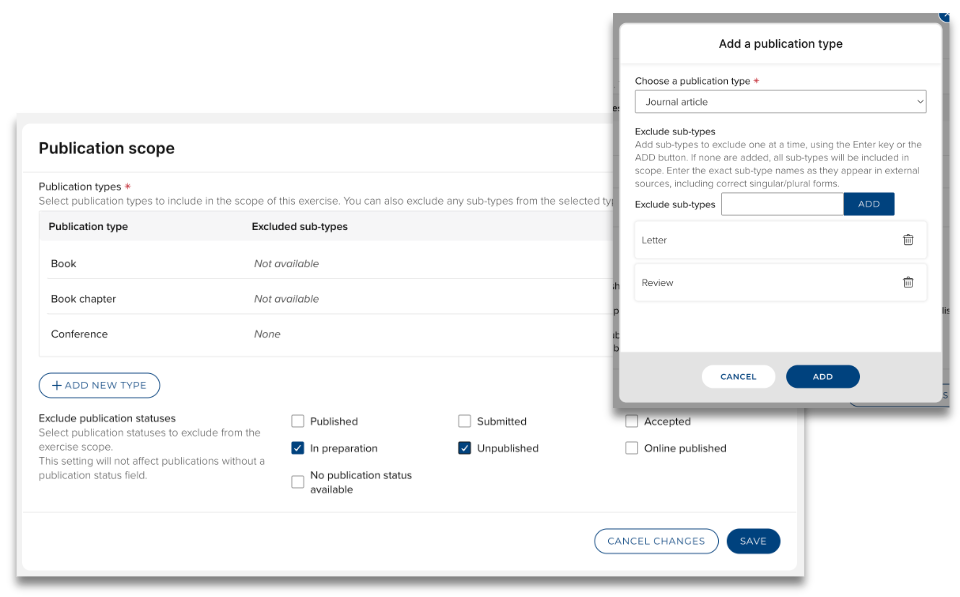
Select the publication types to include in this exercise. You can also choose to exclude specified sub-types (e.g. Letters, Reviews) (where these exist for the selected publication type).
Select any publication statuses you would like to exclude from the exercise (e.g. Unpublished, In preparation).
Linked user scope
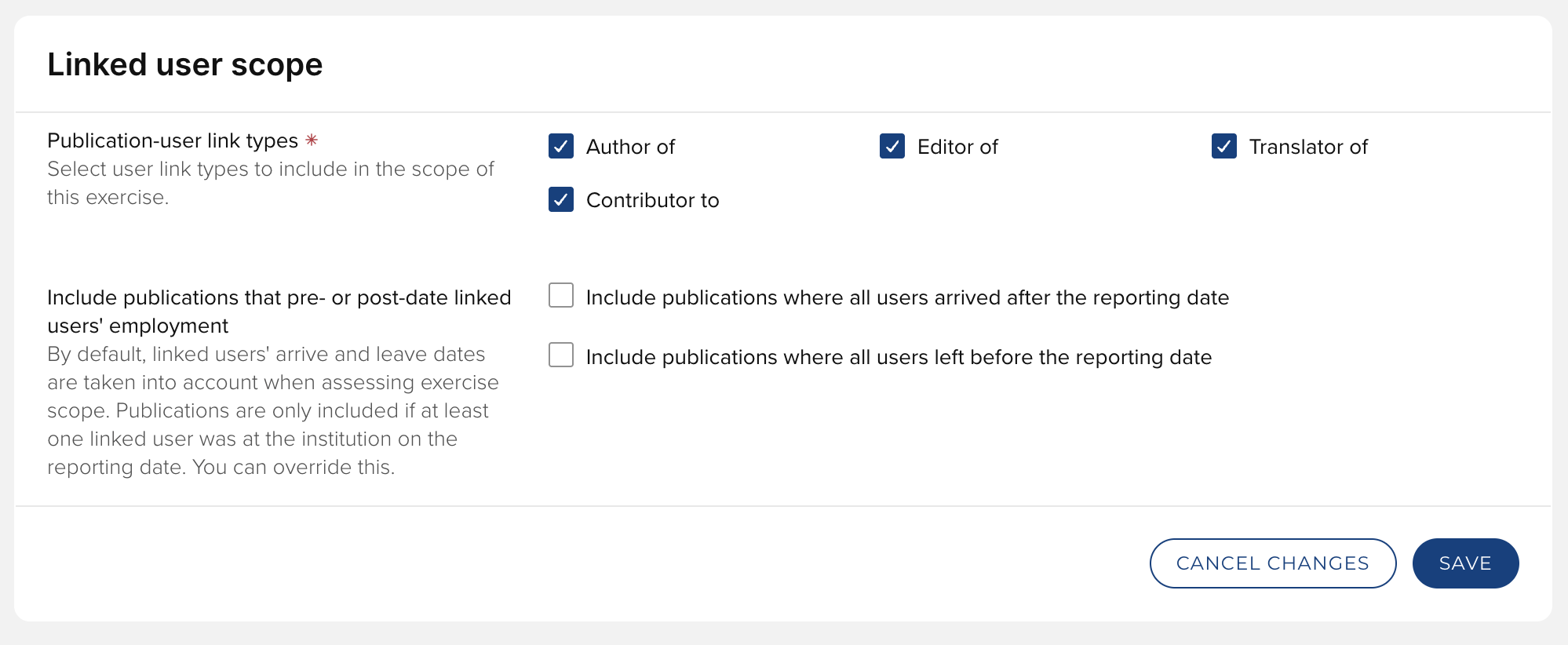
You can set which Publication-User link types to include in the scope of the exercise ("Author of" is by default selected), and you can exclude publications from the scope of the scheme based on the properties of the linked authors.
Nomination
You can configure the guidance displayed to researchers above their list of publications eligible for this exercise.
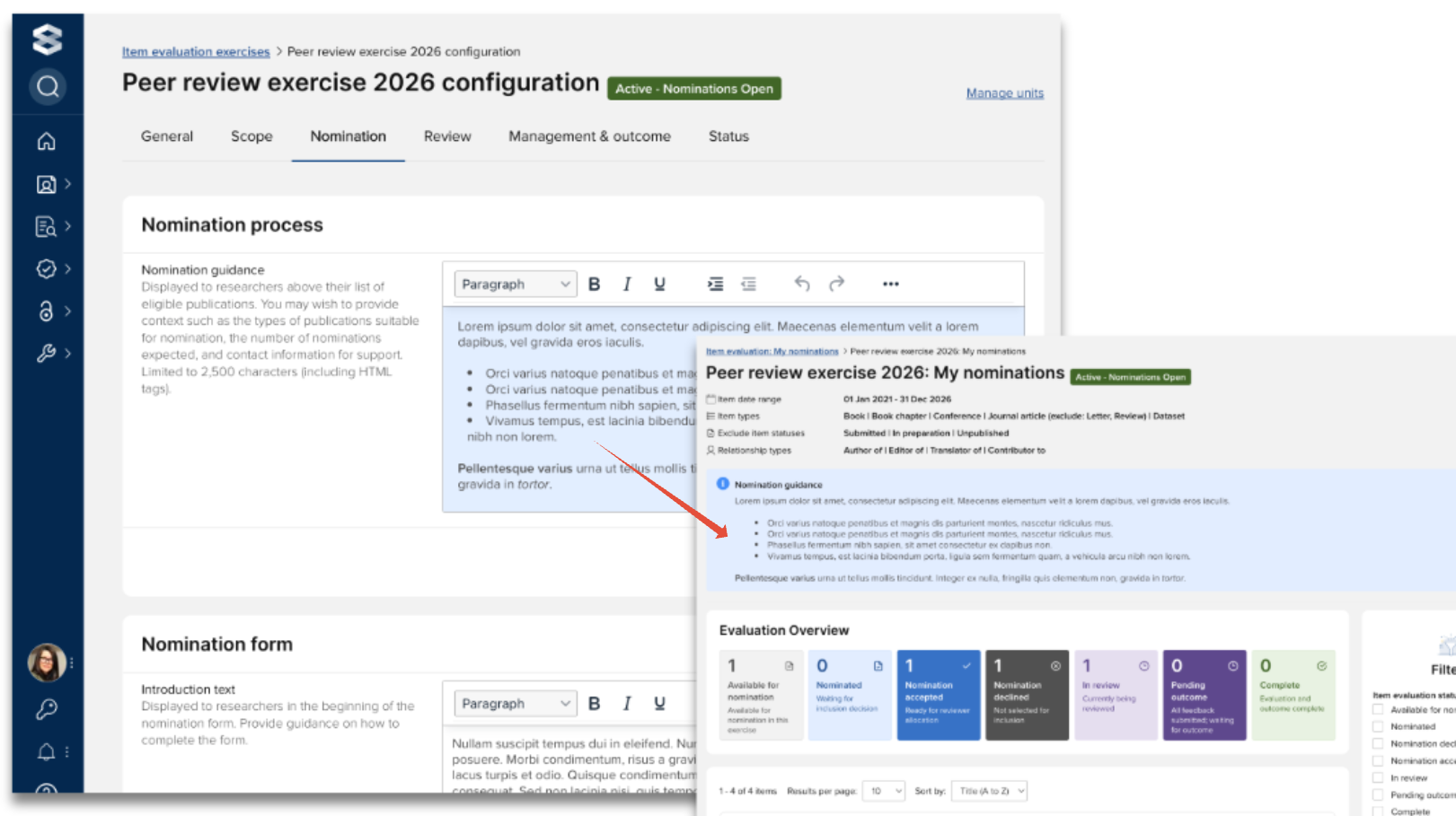
Note:
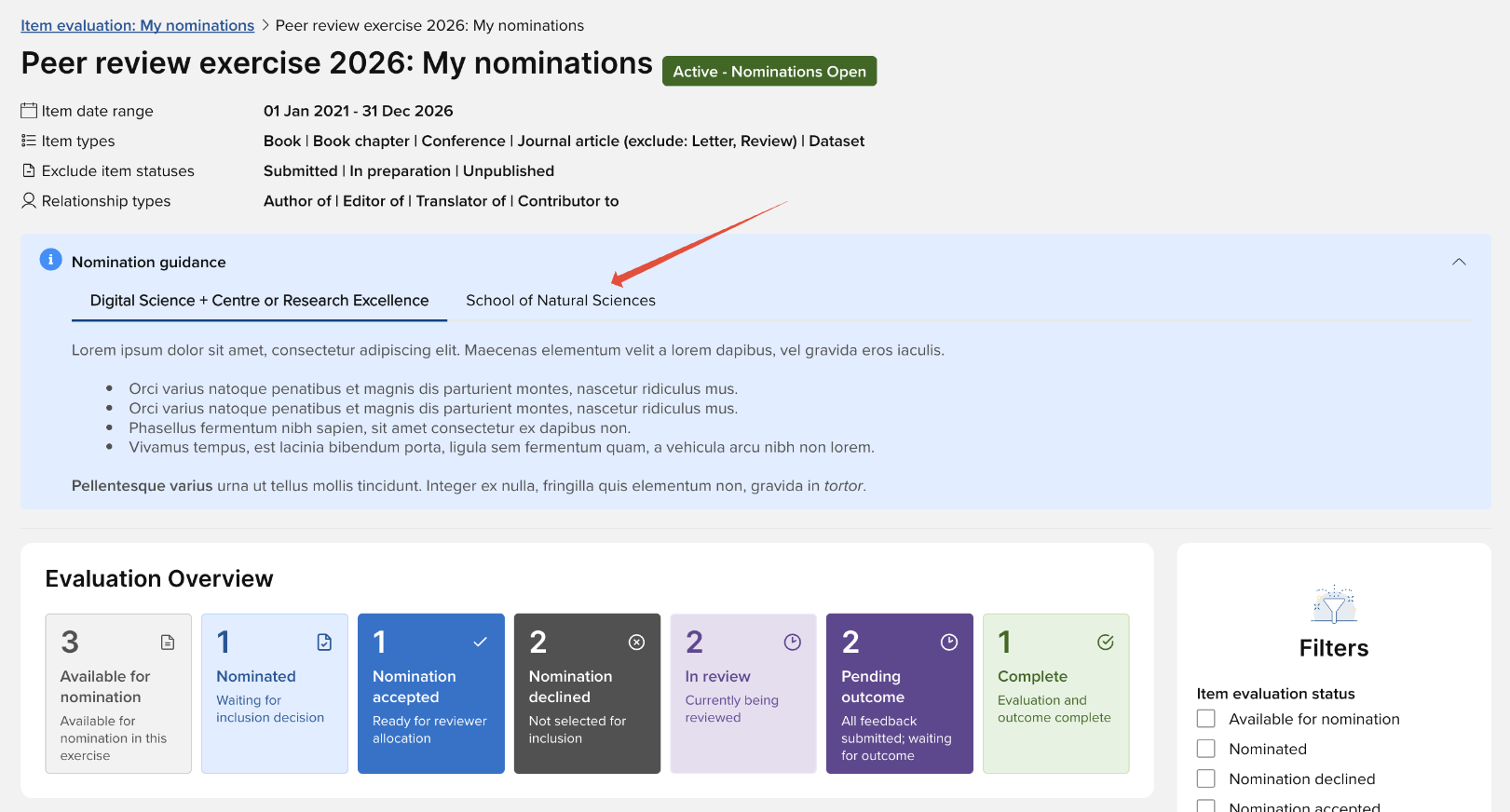
Where a user is a member of multiple Units, their Nomination guidance will appear in a tabbed format, one tab for each Unit that they are a member of (presented in alphabetical order)
If desired, you can also configure a nomination form for researchers to complete when nominating an item for evaluation in this exercise (e.g. you may wish to ask them information about the item they're nominating). Further details on configuring the item nomination form are available in this support article.
Review
You can configure the guidance displayed to reviewers above their list of assigned reviews.
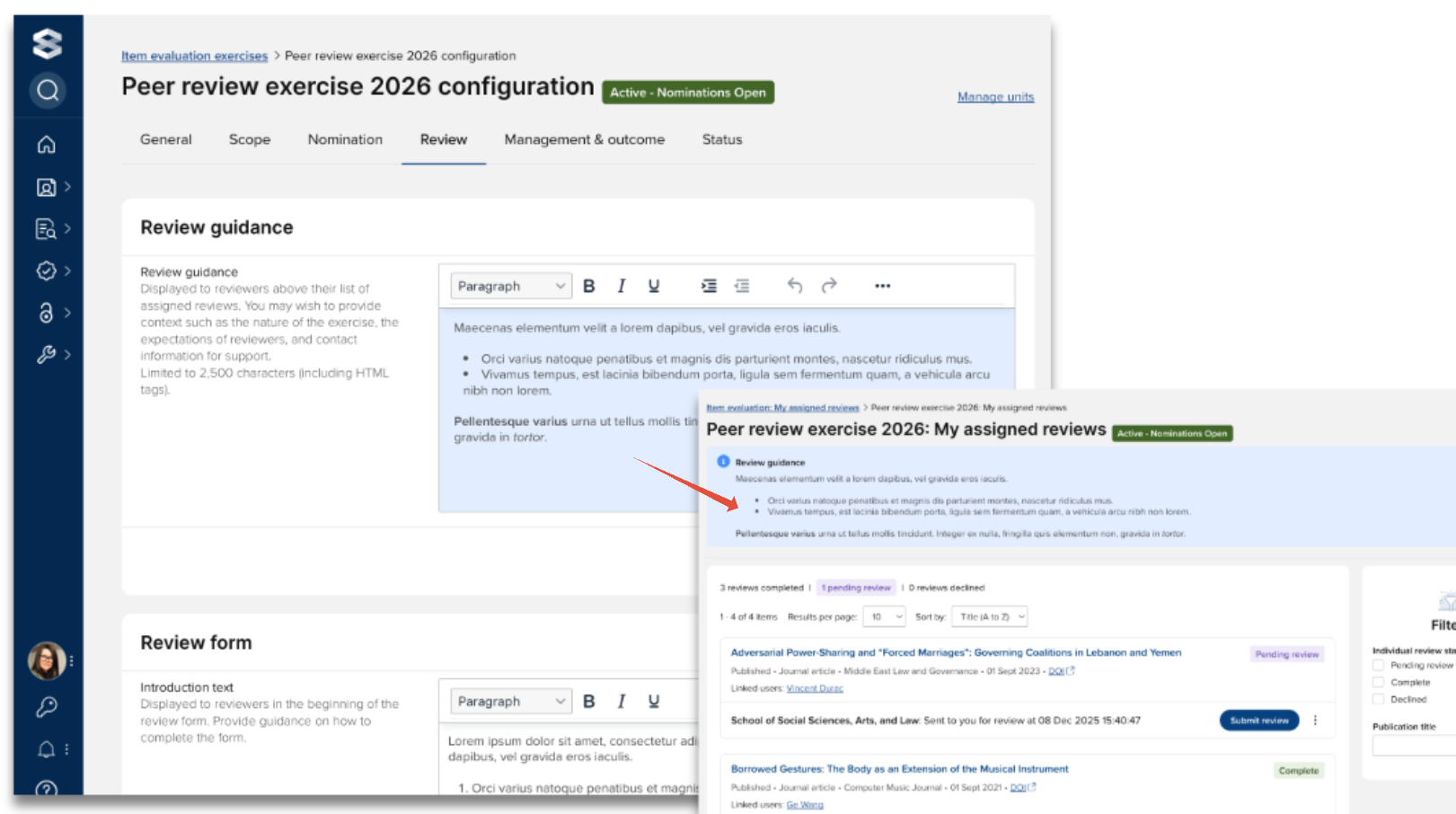
Note:
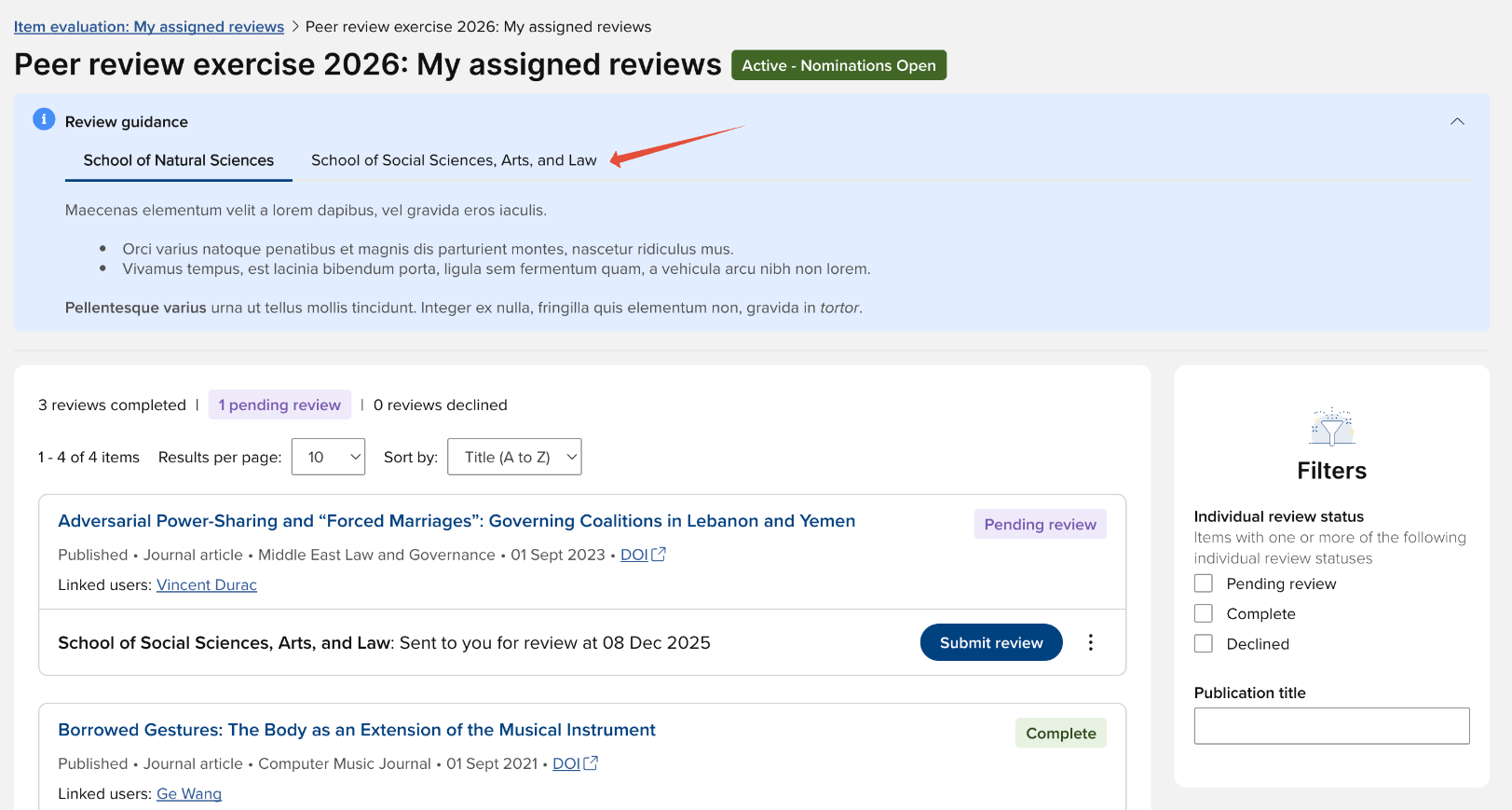
Where a user has been assigned reviews from multiple Units in a single exercise, their Reviewer guidance will appear in a tabbed format, one tab for each Unit that they have been assigned reviews for (presented in alphabetical order)
You must also configure a review form for reviewers to complete when submitting a review in this exercise. Further details on configuring a review form are available in this support article.
Management & outcome
You can configure the guidance displayed to Administrators and Unit managers on the Manage [Exercise unit name] page.
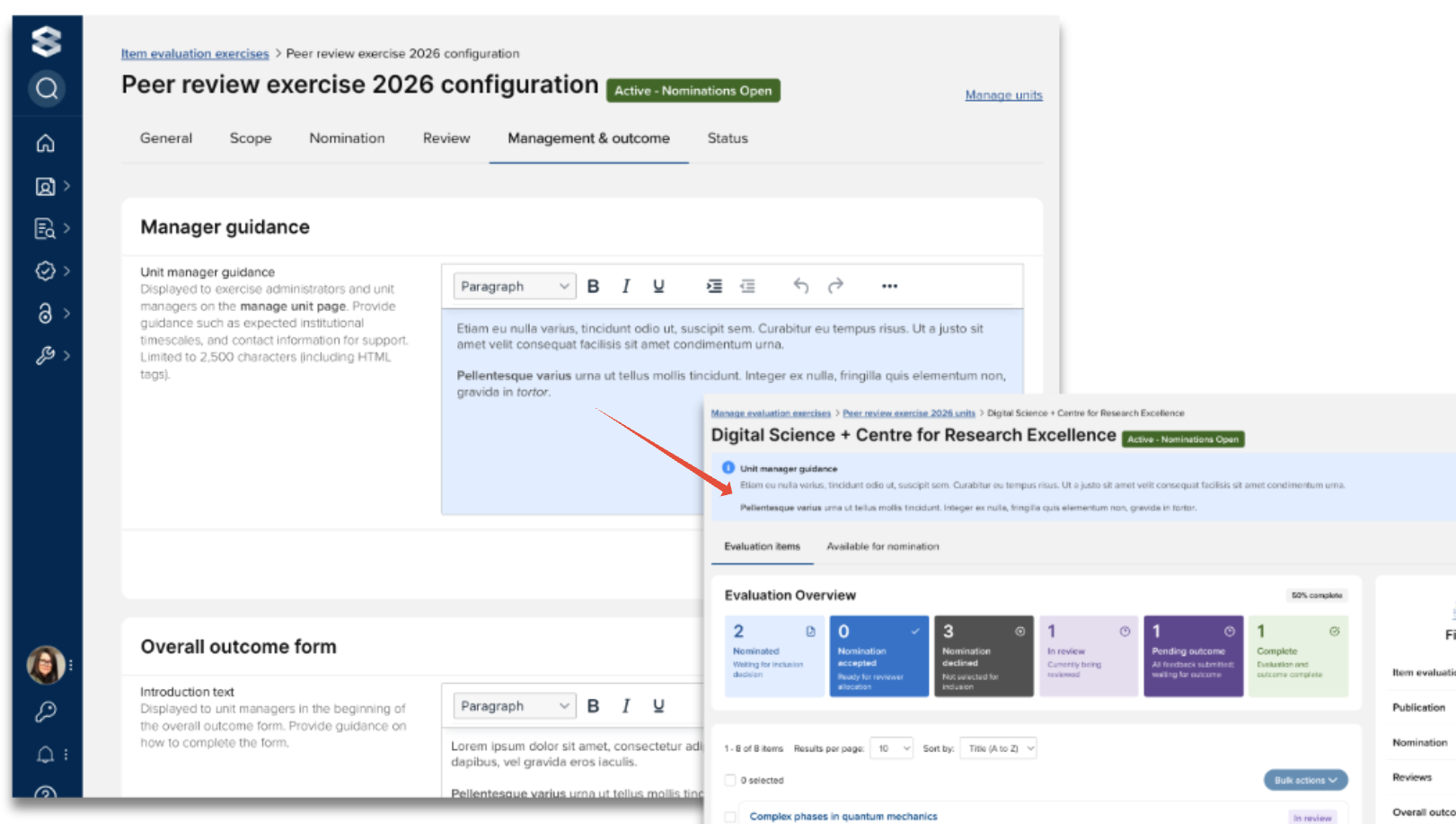
If desired, you can also configure an overall outcome form for managers to complete once all individual reviews have been submitted (e.g. you may wish to capture a moderated score). Further details on configuring the overall outcome form are available in this support article.
Status
You can control who can see and how they can interact with the exercise via the status.
Draft
The exercise is not visible to researchers or reviewers. Only Administrators and assigned Unit managers can see it. Administrators and Unit managers can nominate items and undertake and submit reviews.
Active - Nominations open
The exercise is active and visible to all eligible users and assigned reviewers. Researchers can view the exercise and nominate items for review. Reviewers can undertake and submit dispatched reviews.
Active - Nominations closed
The exercise is active and visible to all eligible users and assigned reviewers. No new nominations or modifications can be made by researchers, but assigned reviewers can continue to undertake and submit individual reviews. New nominations can be made by Administrators and Unit managers.
Closed (read only)
The exercise is visible to all users in read-only mode; no new nominations, reviews, or modifications can be made by researchers or reviewers. Administrators and Unit managers can continue to nominate items and undertake and submit reviews.
Missing configuration settings will be highlighted, suggesting to you what settings should be completed before activating the exercise.
ERRORS | |
Publication date range | No item 'from' date is specified in the Scope tab |
Publication scope | No publication types have been selected in the Scope tab |
Review form | No review form fields defined - reviews cannot be dispatched to assigned reviewers (see the 'Configure the review form' support article) |
Units | No exercise units have been defined for the exercise (see the 'Create and configure exercise units' support article) |
Unit members | Not all exercise units have members defined (see the 'Create and configure exercise units' support article) |
WARNINGS | |
Nomination guidance | No nomination guidance set - nominators will not be provided with any guidance for this exercise |
Nomination form | No nomination form fields defined - nominators will not be prompted to provide any supporting information for their nominations (see the 'Configure the item nomination form' support article) |
Nomination highlighted score | No nomination highlighted score defined (see the 'Highlighted scores' support article) |
Review guidance | No reviewer guidance set - reviewers will not be provided with any guidance for this exercise |
Individual review highlighted score | No individual review highlighted score defined (see the 'Highlighted scores' support article) |
Manager guidance | No manager guidance set - unit managers will not be provided with any guidance for this exercise |
Outcome form | No outcome form fields defined - unit managers will not be prompted to provide an overall outcome comment or score(s) (see the 'Configure the overall outcome form' support article) |
Overall outcome highlighted score | No overall outcome highlighted score defined (see the 'Highlighted scores' support article) |
Unit managers | Not all exercise units have members defined (see the 'Create and configure exercise units' support article) |
Unit reviewer pools | Not all exercise units have reviewer pool members defined (see the 'Create and configure exercise units' support article) |
Item evaluation exercises are initially created in the 'Draft' state - you need to actively move it to another status.
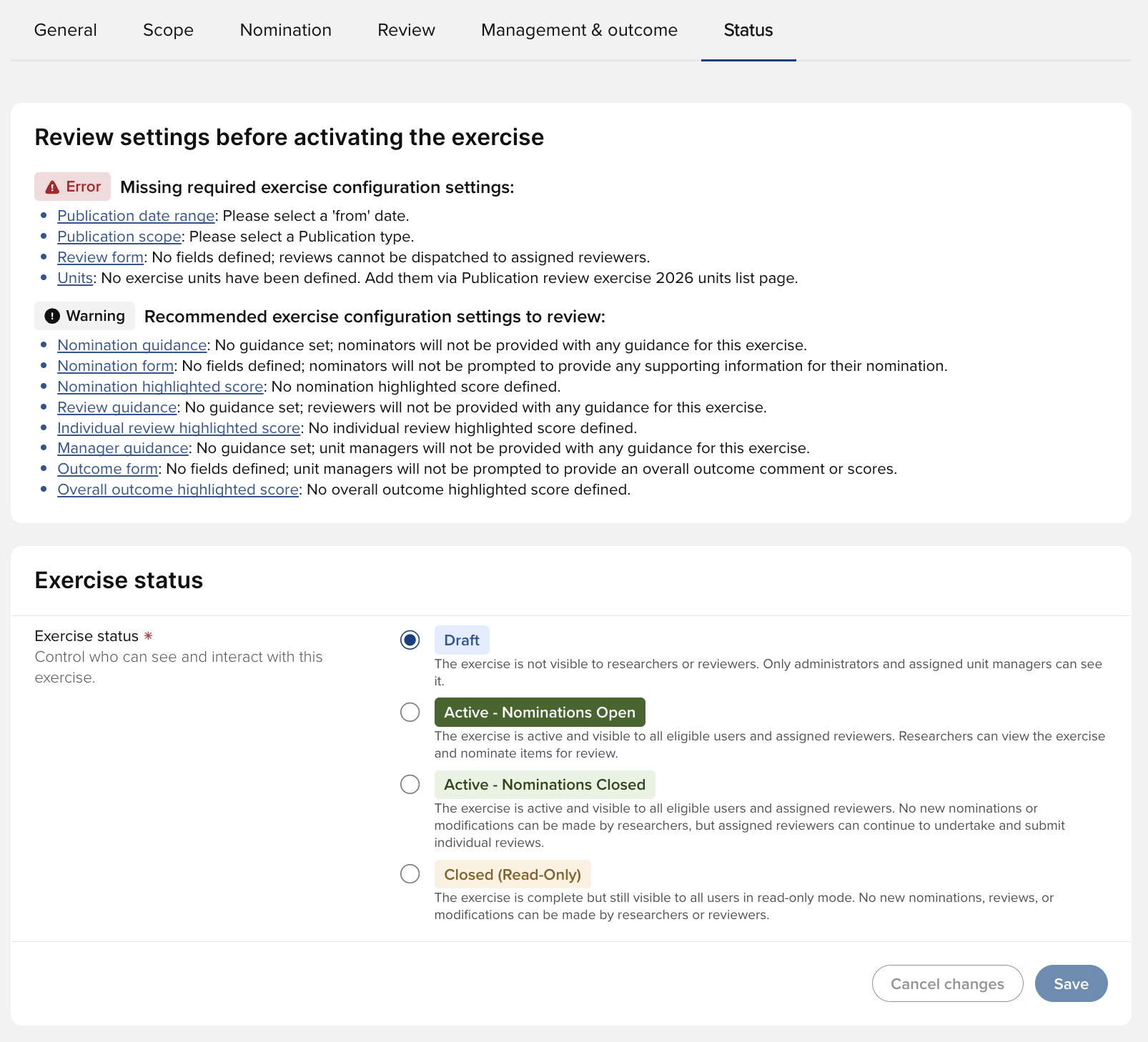
Further information on statuses is available in this support article.
Create and configure exercise units
Details on creating and configuring exercise units, including selecting members, managers, and reviewer pool members, are available in this support article.
Delete an Item evaluation exercise
To delete an Item evaluation exercise, go to Evaluation & review > [ITEM EVALUATION] > Item evaluation exercises, and for the desired exercise, select the action menu and select 'Delete exercise'. Deleting an exercise will permanently remove all associated content, including nominations and submitted forms; the action is permanent and cannot be reversed.