
OA Monitor: FAQ
This article provides answers to some commonly asked questions relating to the OA Monitor. Jump to the bottom of the article if you are on a version of Elements prior to v6.20.
How do I get access to the Open Access Monitor?
Access to the Open Access Monitor is not directly controllable, but is automatically granted to anyone with System Administrator, Research Information Administrator, or Research Manager (RI) rights. The Research Information Verifier can view the OA Monitor, but neither the Verifier nor OA Manager can change settings.
The Module needs to be licensed in System Admin > [GENERAL SETTINGS] > Licence.
How does Elements work out which publications are within the scope of an OA scheme?
The set of publications contained in an OA scheme determined by the scope configured for the scheme, as defined in the Create and configure an OA scheme support article.
Publications excluded from the scope of an OA scheme
As described in the Create and configure an OA scheme support article, you can configure a scheme to exclude publications based on properties of the linked users:
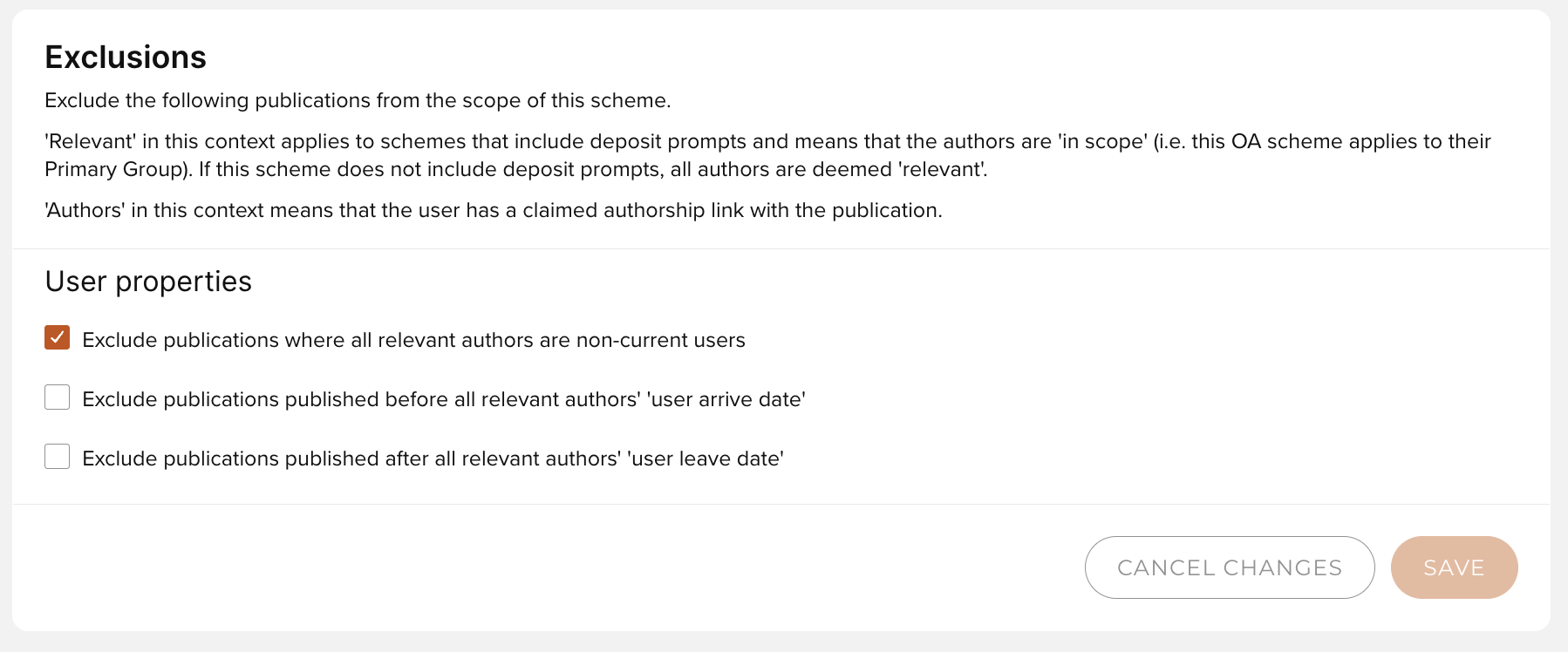
For the 'user arrive / leave date' settings, you can view the arrive / leave for a given user via System Admin > [USERS & GROUPS] > User Management > Manage Users and Feeds. Search for the desired user in the 'Edit user' section, and click 'Details'; Arrive / Leave dates are listed in the 'Personal information' section. If the user is Local, you can edit their details directly on this page. Otherwise, their data is controlled by the relevant HR feed.
If no arrive / leave date has been provided for a user, none of their publications will be excluded via this setting.
How do you calculate compliance?
The OA Monitor applies an algorithm to determine whether or not a publication is compliant with the OA scheme. Further details are available in the Compliance logic and overrides support article.
Embargo information: How is this used?
When a user uploads a file, there is an option of adding an embargo period; this is called the "requested embargo period". This enables the user to communicate to repository administrators the embargo they would like to request for the item and (if enabled) is typically crosswalked to the repository for administrators to consider when processing items in the repository's 'review queue' before publishing them. (Please note this is configurable and can be disabled by the organisation if desired.)
As items are processed in your repository and 'published' (typically by administrators within a review queue) they may apply embargoes to items and set availability permissions (exact process will vary by repository platform). This information as set in the repository is treated as the 'authority' information on embargoes and is cross-walked back into Elements where it is stored and used for compliance calculations in the OA monitor.
Embargo end dates are stored within the Elements database at the record level (for RT2). When an item is under embargo, the embargo end date will be displayed via the 'Deposit' tab on the My Publications page, or in the 'Repository' section on the Publication details screen. Once the embargo end date has passed, we no longer display the information here (as it is no longer embargoed) but continue to store the information in the database for use in OA Monitor compliance calculations. You can review stored embargo information for both currently embargoed and previously embargoed items via the reporting database.
Please note, Elements treats the repository as the authority for metadata about embargoes and so if the embargo is changed in the repository, the metadata stored within Elements will automatically be updated as well. This keeps Elements in alignment with the repository.
Embargoes and EPrints
EPrints has an optional process (scheduled job) which deletes embargo end dates upon lifting them. If you are regularly running the lift_embargos scheduled job on the connected EPrints system, we that recommend you enable a feature we offer to use cached embargo dates in the OA Monitor after the embargo date has been deleted from the source. This allows OA Monitor to continue to use those embargo dates to calculate compliance even after the embargo has been lifted. To do this, enable the "Use cached values for the embargo date" feature for RT2 Eprints connections via the relevant repository connection settings page in Elements.
Embargoes and Figshare or Institutions
Figshare for Institutions deletes embargo end dates upon lifting them. As such we that recommend you enable a feature we offer to use cached embargo dates in the OA Monitor after the embargo date has been deleted from the source. This allows OA Monitor to continue to use those embargo dates to calculate compliance even after the embargo has been lifted. To do this, enable the "Use cached values for the embargo date" feature for RT2 Figshare for Institutions connections via the relevant repository connection settings page in Elements.
What is an exception?
Exceptions can be used to indicate why a publication is not compliant with an Open Access scheme. Many funders specify allowable exceptions to their OA policies, and these can be reflected in your OA schemes.
Further detail on configuring and applying exceptions is available in the following support articles:
How do you handle publications linked to users in different schools?
If the publication is in scope of an OA policy, then it will show only once on the 'Manage Publications in OA scheme' page, regardless of how many users are linked to it. A single publication can be within the scope of multiple OA schemes, with separate compliance statuses (depending on the compliance criteria set per scheme).
Does the OA Monitor use Reporting Dates?
No.
FAQs relevant to v6.19 and previous
How do I get access to the Open Access Monitor?
Access to the Open Access Monitor is not directly controllable, but is automatically granted to anyone with System Administrator, Research Information Administrator, or Research Manager (RI) rights. The Research Information Verifier can view the OA Monitor, but neither the Verifier nor Research Manager can change settings.
The Module needs to be licensed in System Admin > Setup > Licence.
How does Elements work out which publications are in an OA policy?
The set of publications contained in an OA policy is worked out using the configuration settings in the "Open Access policy" section of Open Access > Configure OA > OA Policy Settings.
Preferred Source Date, Publications Types, Start Dates
The OA policy start date for each selected publication type can be set to prefer either the date of acceptance by the publisher ("Accepted") or the publication date ("Published").

If the preferred date is not set on a publication, the other date will be used. If neither date is set, the publication will still appear in the set so that an administrator can curate the missing data.
For example, with 'accepted date' as the preferred date, and an OA policy start date of 01/05/2015 (or 01 May 2015) for journal articles, the following journal articles would be included in the set:
Item 1, accepted on 20 May 2015, not yet published
Item 2, accepted on 30 May 2015, published 15 July 2015
Item 3, no acceptance date provided, published 20 June 2015
Item 4, no dates provided
The following articles would be excluded:
Item 5, accepted on 20 April 2015, not yet published
Item 6, accepted on 30 April 2015, published 15 June 2015
Item 7, accepted on 15 May 2014, published 30 June 2014
Item 8, no acceptance date provided, published 30 April 2015
Exclusions
Publications can be excluded from the set using the following settings:
Exclude publications published before the "user arrive date"
You can view the "user arrive date" for a given user via System Admin > User Management > Manage Users and Feeds. In the "User management" section, search for the user and click 'Details'. If the user is Local, you can edit their details directly on this page. Otherwise, their data is controlled by the relevant HR feed. If no arrive date has been provided for a user, none of their publications will be excluded via this setting.Exclude publications with an indefinite embargo (e.g. waiver)
RT1: This refers to publications where the user has requested an indefinite embargo in Elements, NOT where an indefinite embargo has been set in the repository.Exclude publications under embargo
RT1: This refers to publications where the user has requested an embargo in Elements, NOT where an embargo has been set in the repository.Exclude conferences without an ISSN
Some policies only apply to conference publications if they have an ISSN (e.g. the REF 2021 policy in the UK). Check this option if you need to exclude conference publications without an ISSN.
For additional assistance, see Open Access Monitor Module Administration - Configuration Overview.
Embargo information: how is this used?
When a user uploads a file, there is an option of adding an embargo period; this is called the "requested embargo period". This is way for a user to communicate to repository administrators the embargo they would like to request for the item and (if enabled) is typically cross walked to the repository for administrators to consider when processing items in the repository's 'review queue' before publishing them. (Please note this is configurable and can be disabled by the organisation if desired.)
As items are processed in your repository and 'published' (typically by administrators within a review queue) they may apply embargoes to items and set availability permissions (exact process will vary by repository platform). This information as set in the repository is treated as the 'authority' information on embargoes and is cross-walked back into Elements where it is stored and used for compliance calculations in the OA monitor.
Embargo end dates are stored within the Elements database either at the object level (for RT1) or the record level (for RT2). When an item is under embargo, the embargo end date will be displayed via the 'Full text' section on the My Publications & Publications details screens. Once the embargo end date has passed, we no longer display the information here (as it is no longer embargoed) but continue to store the information in the database for use in OA Monitor compliance calculations. You can review stored embargo information for both currently embargoed and previously embargoed items via the reporting database.
Please note, for both RT1 and RT2 connections, Elements treats the repository as the authority for metadata about embargoes and so if the embargo is changed in the repository, the metadata stored within Elements will automatically be updated as well. This keeps Elements in alignment with the repository.
A note about embargoes and EPrints
EPrints has an optional process (scheduled job) which deletes embargo end dates upon lifting them. If you are regularly running the scheduled job lift_embargos on the connected EPrints system, we recommend you enable a feature we offer to cache Embargo dates to allow us to continue to use those embargo dates to calculate compliance even after the embargo has been lifted. You can enable the "Use cached values for the embargo date" feature for both RT1 and RT2 Eprints connections via the relevant repository connection settings page in Elements
How do you calculate compliance?
The minimum requirements for a publication to be compliant are as follows:
It is live in the repository;
It has at least one file or OA location;
It has a publication or acceptance date (as specified on the OA policy settings page, section 1).
You can set some additional constraints:
Deposit Deadline
The deposit deadline is the maximum number of days that can elapse between the acceptance date or publication date (primary source date as defined in the OA policy settings) and the date of first deposit.
If a deposit deadline has not been set, then the time elapsed between primary source date and deposit date will not be used to assess compliance.
Maximum File Embargo
If the maximum file embargo has not been set, then file embargo periods will not be used to assess compliance.
If it is set to X days, then a publication can only be compliant if none of its files has an embargo set in the repository of more than X days after the publication date.
For instance, with a maximum file embargo of 180 days, the following publications would pass the maximum file embargo constraint:
Publication 1
File 1: no embargo periodPublication 2
File 1: embargo period of 90 daysPublication 3
File 1: embargo period of 180 daysPublication 4
File 1: no embargo period
File 2: embargo period of 90 days
File 3: embargo period of 180 days
However, the following publications would not:
Publication 5
File 1: indefinite embargoPublication 6
File 1: embargo period of 181 daysPublication 7
File 1: no embargo period
File 2: embargo period of 180 days
File 3: embargo period of 365 days
Note that the maximum file embargo period always relates to the publication date, never the acceptance date.
Compliant File Versions
If no compliant file versions are specified, then file versions will not be used to assess compliance.
If any versions are specified, then a publication can only be compliant if at least one of its files is declared to be one of the specified versions.
If both maximum embargo period and compliant file versions are specified, then a publication can only be compliant if it has a file with a compliant version that is out of embargo after the specified period.
Please note that Elements looks for an exact text match between the file version returned by the repository and the file version selected in Elements to check for compliance.
For example, under a policy configured to look for a file version of 'Accepted', the following publications would pass the compliant file versions constraint:
Publication 1
File 1: AcceptedPublication 2
File 1: Accepted
File 2: Published
File 3: Supporting information
The following publications, however, would not:
Publication 3
File 1: Accepted version (not an exact match for "Accepted")Publication 4
File 1: No version information providedPublication 5
File 1: PublishedPublication 6
File 1: Published
File 2: Supporting information
If a maximum file embargo period of 180 days were also requested, then publications 1 and 2 above would also have to have a maximum embargo on their 'Accepted' files of no more than 180 days.
What is an exception?
Exceptions are effectively a set of pre-defined labels that can be applied to a publication, from within the OA monitor, to explain why the publication is not compliant with the OA policy. Multiple exceptions can be applied to each publication, per policy.
The full set of exceptions is pre-defined by Symplectic. An administrator can choose the subset of exceptions available for selection in the OA monitor.
There is currently some overlap between exceptions and exclusions, which we hope to address in a future release.
How should I configure the settings?
In this section, we provide a suggestion of how to configure Elements to support various policies.
1. Post REF-2104 On Acceptance Policy (UK specific)
OA Monitor Settings
Choose to display accepted date in OA monitor
Select REF exceptions
Repository Tools Settings
RT1: Make sure the file versions you make available in Elements are EXACTLY the same as the file versions in your repository. Elements expects an exact match between the file version text returned by the repository and the file version selected in Elements to check for compliance. For more help, please see the section called "File Version Labels" in the article Repository Module Administration - System Connections.
RT2: The harvest crosswalk must translate the file versions used by the repository into the file versions used be Elements. An exact text match is required.
OA Policy Settings
Select accepted date as the preferred source
Add deposit deadline of 91 days
Set maximum embargo period of 366 days for primary groups in STEM, 731 days for non-STEM primary groups
Select your compliant file versions
2. Institutional Policy of Depositing open access publications
OA Monitor Settings
Choose not to display accepted date in OA monitor
Select Waiver and Unavailable exceptions
Repository Tools Settings
RT1: Make sure the file versions you make available in Elements are EXACTLY the same as the file versions in your repository. Elements expects an exact text match between the file version returned by the repository and the file version selected in Elements to check for compliance.
OA Policy Settings
Select publication date as the preferred source
Add a deposit deadline if one is stated in your policy
Select your compliant file versions
How do you handle publications linked to users in different schools?
If the publication is in the OA policy, then it will show only once on the publications report, regardless of how many users are linked to it. The publication will show up when any of the schools or linked users are selected. If the publication has been deposited, it will show as deposited for all the linked users, regardless of who made the deposit.
Where do you get the first deposit date from?
The First Deposit Date is the date a user first granted a repository licence to the publication from within Elements, which is the date they clicked the 'Deposit' button.
N/A is showing for first deposit date but there is a repository full text deposit - how can this occur?
For RT1 connections only, there are a few scenarios where this occurs:
If the item was deposited prior to the Elements system being at version 4.14
If you bypassed the deposit process in Elements and worked directly in the Repository
Your repository is configured to skip a licence step.
What is the engagement report telling me?
The engagement report shows the list of users who are not linked to any publication that has been either accepted or published (depending on your OA monitor settings) since the date you set. Only publication types selected in your OA policy settings apply.
What are the dashboards telling me?
When your selection contains only groups, the charts are based on the set of publications linked to users in the groups that fall into the OA policy selected. When your selection includes individual users, the group charts no longer apply, and the charts are based on the set of publications linked to the users in the groups and the individual users that fall into the OA policy selected.
The donut charts show the proportion of these publications that have been deposited and the proportion that comply with the selected OA policy.
The bar charts show the top/bottom 10 individual and group depositors.
Can I export data from the OA Monitor?
Yes, data from both "Publication in OA policy" and "Engagement report" can be exported in CSV format. The "Publications in OA Policy" option includes the following fields:
Article title
Authors
Funded by (organization name)
Repository status (Live/Not deposited)
Acceptance date
First deposit date
Deposit due date
Publication date
Exception
Exception comment
The "Engagement report" exports:
Author name
Position
Department
Why do I need to select an OA policy when I run a report?
In most cases, you will not be asked to select an OA policy. You only need to select an OA policy if you have configured your OA policy at a group level and you have selected to report on groups or users who do not share the same OA policy.
You need to select an OA policy to apply in this case as the same publication may be linked to users in groups with differing OA policies.
How does the email feature work?
The email feature uses your email client (e.g. Outlook) to send an email to a single specified user. When using the "send email" link on a single publication within the OA monitor, if there is only one user with a confirmed (not pending) link to that publication, a new blank email to that user will be opened automatically; if there are two or more, then you will be presented with the list of linked users and can choose which one to email.
What additional features are you planning?
Display additional contextual information in the engagement report
Enable click through from dashboard to report
Ability to save filter settings as 'quick filters'
Allow users to record a deposit exception on the deposit page
Provide more sophisticated email functionality
Does the OA Monitor use the Reporting Date?
No.
How does the record precedence affect the dates on the OA monitor?
The record of highest precedence is used to determine which date is used. This is set in System Admin > Data Sources > Data Source Management.
How is the Published Date field calculated?
For more details see this article about the calculation.
By taking the earlier of the highest-precedence publication-date value and the highest-precedence online-publication-date value from the publication's records. The process looks like this:
Go through the records in source-precedence order and take the first publication-date seen (some records may not have a value for the field)
Do the same for the online-publication-date
Display the lower of the two values
The source-precedence order used is the Default one, rather than the Reporting Tools one - the Reporting Tools precedence is only used when synchronising data to the Reporting Tools database. Changing the Default source precedence is indeed the place to control the OA Monitor's field values, though the fact that two fields contribute to the field means that you may have a reliance on your manual records being rich enough for your requirements. For example, if your source precedence had Manual above Scopus, and the data looked like this:
Precedence | Data source | online-publication-date | publication-date |
|---|---|---|---|
1 | Manual | 01 Jan 2016 | (null) |
2 | Scopus | (null) | 01 Jan 2015 |
The Published field in the OA Monitor would display 01 Jan 015. If you wanted the 2016 date to be shown you would need to ensure that it appears in the Manual record, because of the comparison in step 3 above.
Why can't I see publications for a user in the OA Monitor?
The user must have the statuses for "Is Current" and "Is Academic" set to True in their user account so their publications show in the monitor.
More information:
Open Access Monitor Module Administration - Configuration Overview